Product Listing


Product listing offers many features in one comprehensive form. Product listing makes it easy for the user to add, edit and search.
To access the Products listing module the user will click on the Products tab and proceed to click on the Products listing button.

The Products listing module has a a toolbar with various options that the user can cycle through.

A button description table(from left to right) is provided bellow.
New |
Sets the form to add a new product. |
Save |
Saves a new or edited product. |
New number |
Will retrieve the next available number in the cost centres product number range. |
Delete |
Deletes the selected product if no stock on hand or outstanding transactions exist. |
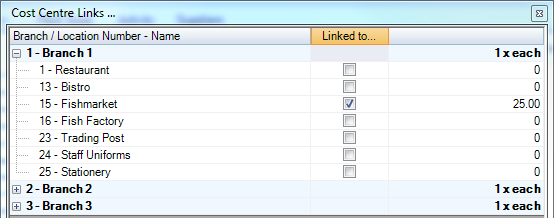
Cost Centre Links |
Displays a form that will allow the user to link the selected product to additional cost centres.
|
Selling Price Analysis |
Displays a form that contains selling, cost and profit information
|
Print Preview |
Print previews a list of the currently selected product list. |
First, Previous, Next, Last |
Record navigation buttons. |
Record Count |
Displays the number of products in the product list. |
Reset Filters |
Resets all filters in the filter grids and refreshes the product list. |
Refresh |
Used to refresh the product list if filters have been changed. |
Search by Description |
Description is the default column to search on. However, if the column is not a number then clicking on the column will change the search criteria to the selected column. |
Copy Products. |
Copy the current product list to another cost centre. A pop up of available cost centres will be displayed. |
Export to CSV |
Exports the current product list to a CSV file (Comma separated values) |
Export to Excel |
Exports the current product list to a EXCEL file. |
Import |
Imports products from a CSV or Excel file. This is covered later on in this section. |
Toggle Captions |
Displays captions under the buttons.
|
The user will be able to set filter conditions for his selection criteria.
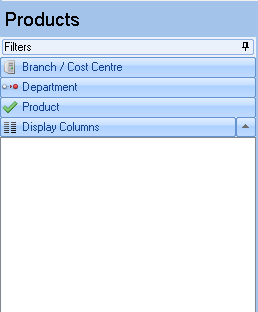
The first condition to set will be the Branch/cost centre that the user will like to view the various products listing for.

Under departments the user can flag the relevant department for the filter.

By clicking on the filter Product tab the user will be able to set filter conditions according to predefined criteria. Filter options include true/false/ignore. The filters work in combination unless the ignore option is selected. If the user requires to view all stock items regardless of any other settings he will select Stock Item as true and ignore all other options. However, if the user requires to view all stock items that are till items as well then setting both to true and ignoring all others will return all items marked as stock and till items.

⇒ [Note] The user must use the refresh button when changes are made to filters.
The Display columns filter allows the user to decide which columns to display in the main grid by selecting the columns in the display columns grid.

⇒ [Note] The columns options will only be shown once the products listing form has been populated with data.
In the top right corner under the toolbar is a check box called Edit mode. This feature, when checked, will allow the user to edit a product without the need to save each time. This is especially useful if a lot of price changes are required.
The Hold previous product values feature, when checked, will hold the previously added products values. This is especially useful when adding new products that share information such as cost prices or departments and so forth.
While the user is standing on a selected product he will be able to view the Properties and image grid. The grid includes additional settings that can be chosen according to the company needs. Images can also be included in an items detail.

The Bulk changes feature allows a few select bulk changes to be made to a group of items.

To activate bulk editing the user will simply select a range of products by holding down the left mouse button and dragging to the last item that the user wants to include. Alternately, the user can hold down the CTRL key and select individual rows. Once more than one item is selected the bulk changes panel becomes available and changes can be made as desired. No save is required when in this mode, changes are affected immediately after the user clicks on the Apply button.
Below the list of items on the left is a tab called cost centre links and levels. The user will click on this tab to open up another grid displaying all the cost centres that an item belongs to with the current stock level, landed and average cost.

The panel on-top of the products listing grid allows for quick navigation to view certain details while highlighting the desired item.

Clicking on the Recipe and preparation tab will bring up the recipe for the sales item. A summary of information is also provided.

The user can click on the Edit recipe button to allow changes to be made to the recipe. If the Deduct stock flag is on, that will indicate that live stock deduction is occurring for the item.

If the user clicks on the Pack size tab he will be able view the pack size, if any, for the stock item. The user can click on Add pack to add a pack size to the selected item. Once he has in-putted the necessary information he will click on the Save packs button.

The Activity tab simply allows the user to view any activity that has occurred for the selected item.

The Suppliers tab allows the user to link a supplier to the stock item. The user will simply click on the Add supplier button and proceed to double click on the desired supplier to be linked to the product.

Once the user is satisfied with any changes made he can click on the save suppliers button.
Created with the Personal Edition of HelpNDoc: Write EPub books for the iPad