Order Request


The Order Request icon is the first stage of a request process. This module allows the user to move the request through an authorisation process. If the user were responsible for the placing of all purchase orders and the only person responsible for ordering stock items then he can skip this process and proceed to the Orders icon to place an order immediately.
To access the the Order Request module the user will click on the Purchases tab on Procure.Net and clicking on the Order Request button.

The user will then proceed to navigate to the Request for field. Clicking on this field will bring a list of the various cost centres that can be chosen. The user will click on the relevant cost centre requesting the order.

Once the selection of the cost centre is made the user will hit the enter key on the keyboard, this will navigate the user to the remarks field. The user will enter a descriptive remark of choice.

Once all the relevant information is entered the user will navigate to the Order Code field. Once on this field the user will hit the enter key on the keyboard.
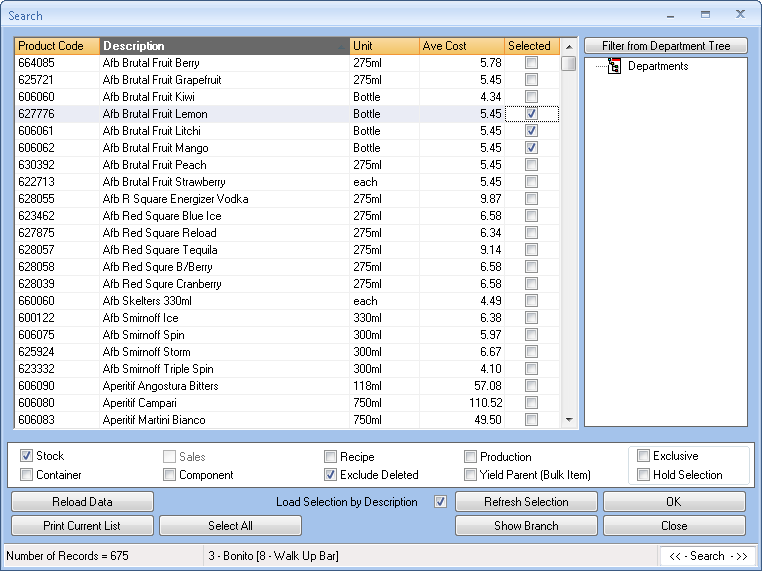
Next a list of stock items will be populated. From here a selection can be made of the desired stock items to be ordered by flagging the Selected column and clicking on OK.
Once the desired stock items have been selected the user can proceed to the Request Qty field. In this field the user will enter the required quantity to order.

⇒ [Note] The user must ensure that the delivery date and cost centre are correct. Products with a higher Authorization level than the user will not be “Authorized”. Products with the same or lower level of Authorization will be authorized automatically. These items can be “Unauthorized” by the user should they wish to do so. Authorization levels come into effect if set under the branch settings.
Once the user is satisfied with all relevant information they can proceed to finalise the submission of the request by clicking on the Submit button
A order request information bar will pop-up with a summary of the current transaction.

A prompt will appear with the option to skip printing or if the user desires click OK to print.
Created with the Personal Edition of HelpNDoc: Single source CHM, PDF, DOC and HTML Help creation