Main Screen


Upon start-up of Procure.net the user will be provided with the main screen where the user can quick-navigate across various functions.

Some options on the ribbon may not be available depending on the access rights given to the user. Options will be greyed out denying the user access unless set-up for such.

The main screen of Procure.net is broken into 4 main sections being:
1. A Quick Access Toolbar (QAT).
The quick-view icons offer the user a quick link to certain functions from left to right: NEW, SAVE, DELETE, PREVIEW, CALCULATOR, LOG OUT and EXIT.

The New icon provides the user with a quick navigation to create a new section depending on the needs. If the user clicks on the cost centre header on the Tree-view he will be able to create a new cost centre by clicking on the new icon.

Same will apply for other sections as bins, departments, minor departments, sub departments, users, debtors groups, supplier groups and workstation.

Once the New icon is clicked on, the user will be able to add or edit details within the Details pane. Once all the details have been added the user can click on the Save icon.

The Delete icon allows various sections to be deleted. If a section within the Tree cannot be deleted it will be greyed out, otherwise the icon will be red. The Preview icon allows preview of various documents that the user has processed. The Calculator icon provides the user with a calculator function to facilitate calculations. Logout icon allows the user to log out of Procure.net by clicking on the icon. Exit will allow the user to exit Procure.net.
The user can add other quick access icons on the toolbar by right clicking any function and clicking on add to quick access toolbar button.

2. The Ribbon.
The ribbon groups functionality in a logical and user friendly manner allowing users to navigate the system with ease.

3. The Tree-view.
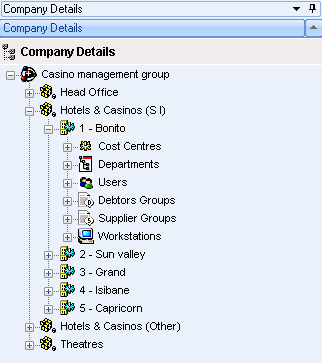
The Tree-view provides the user a breakdown on the various offices, branches, cost centres and departments within the company. Set-up is also done for the users, debtors groups, supplier groups and workstation.
4. Details pane.
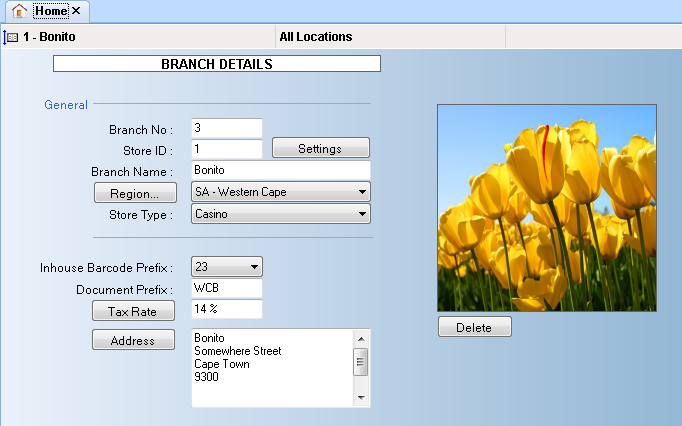
If the user stands on any section of the tree he will be provided with a details pane where he will be able to add or edit various details.
The reports module within Procure.net have similar look and feel in terms of the selection process. A criteria screen will be brought up where selections can be made according to the desired information the user will like the report to be based on.

First criteria shown is the date from and date to for the report to be based on. The user will click on the dates that he requires.
Next the user will select the Branch/Cost Centre field. This allows selection of the cost centre for the report. Some reports offer options to select the Branch/cost centre from and Branch/cost centre to which transaction occurred.
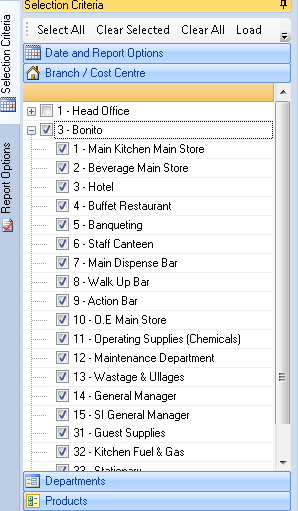
⇒ [Note] More than one 'From and To' Cost Centre can be chosen for report purposes according to needs.
Certain reports allow for the selection of the Users field. The report will be narrowed down according to the transactions conducted by a specific user.

Reports can be narrowed down to specific departments by flagging the desired selection..

Reports can be further narrowed down to specific products by flagging the required products.

⇒ [Note] If the fields are left unflagged then the report will be populated with all the transactions that took place for the the selected 'From and To' cost centre.
Once all criteria is satisfied as correct the user will proceed to click on the Load button. This will populate the reports form.

The Reports layout is similar throughout all the reports modules in Procure.net.
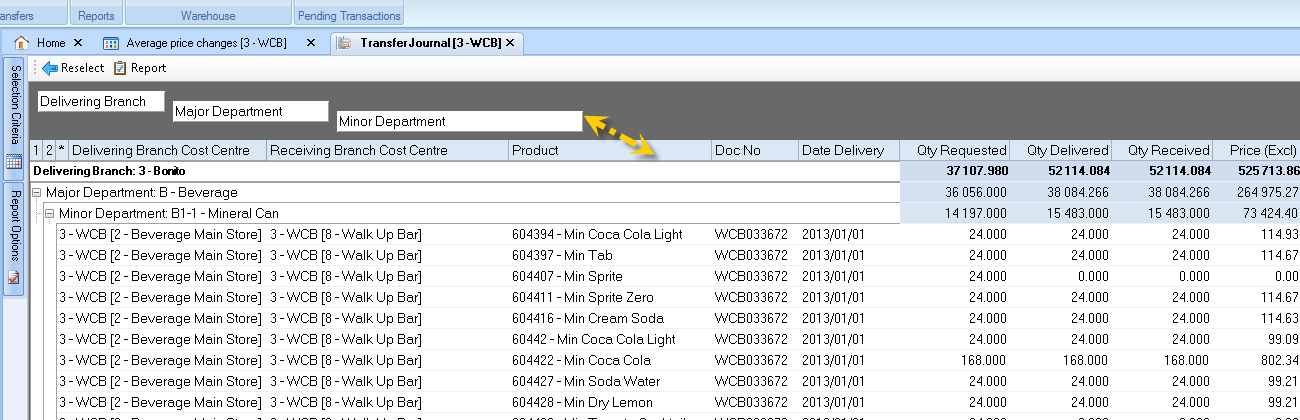
⇒ [Note] The user can customise the columns displayed by clicking on the column fields and dragging them in an out of the form headers. Example will be if the user will want to display the minor branch column then will click on it and drag it into the report.

Created with the Personal Edition of HelpNDoc: Free PDF documentation generator