Labels


The user will use the Labels module to print bar coded labels for items if desired.
The user will click on the Utilities tab and proceed to click on the Labels button.

The user will either type in the Product code or search for a product to create a label for, by clicking on the Product code field and searching through the list and flag the desired item to load.
All the fields will be populate according to the item selected.
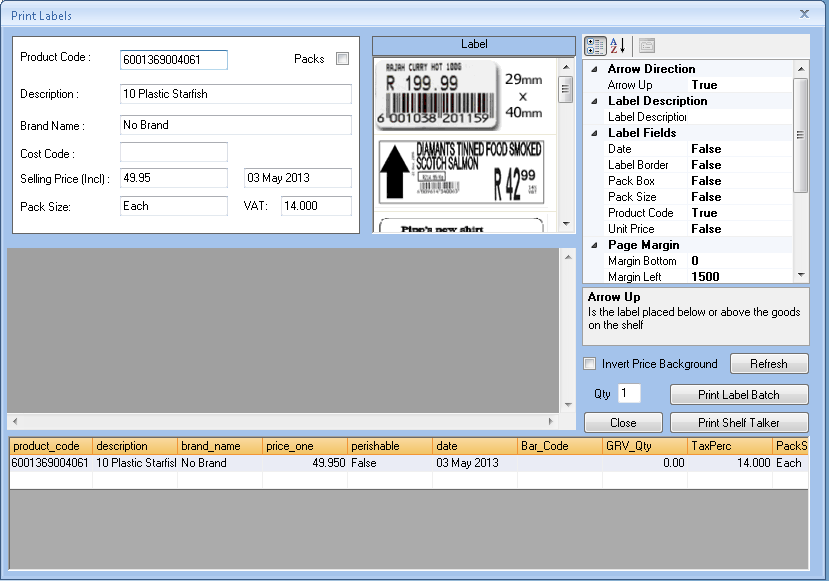
The user can select between various options of bar-code design by navigating to the label section and scrolling between the options and double clicking on the desired option.

The user can also edit various properties for the label by clicking on the desired properties and editing according to the needs.
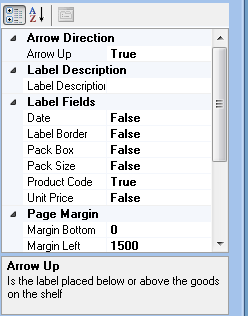
An information bar is provided in Procure.net within the labels module. This allows the user to view a summary of relevant information for the selected item.

If the user has done any editing according to specific needs within the labels module he will click on the Refresh button to refresh the data.
The user will click on the Qty field and enter the quantity of labels to print.
The user will then click on the Print label batch to print the labels.
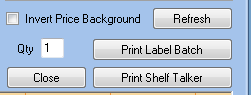
⇒ [Note] the invert price background allows the user to invert the colours on the label.
Created with the Personal Edition of HelpNDoc: iPhone web sites made easy